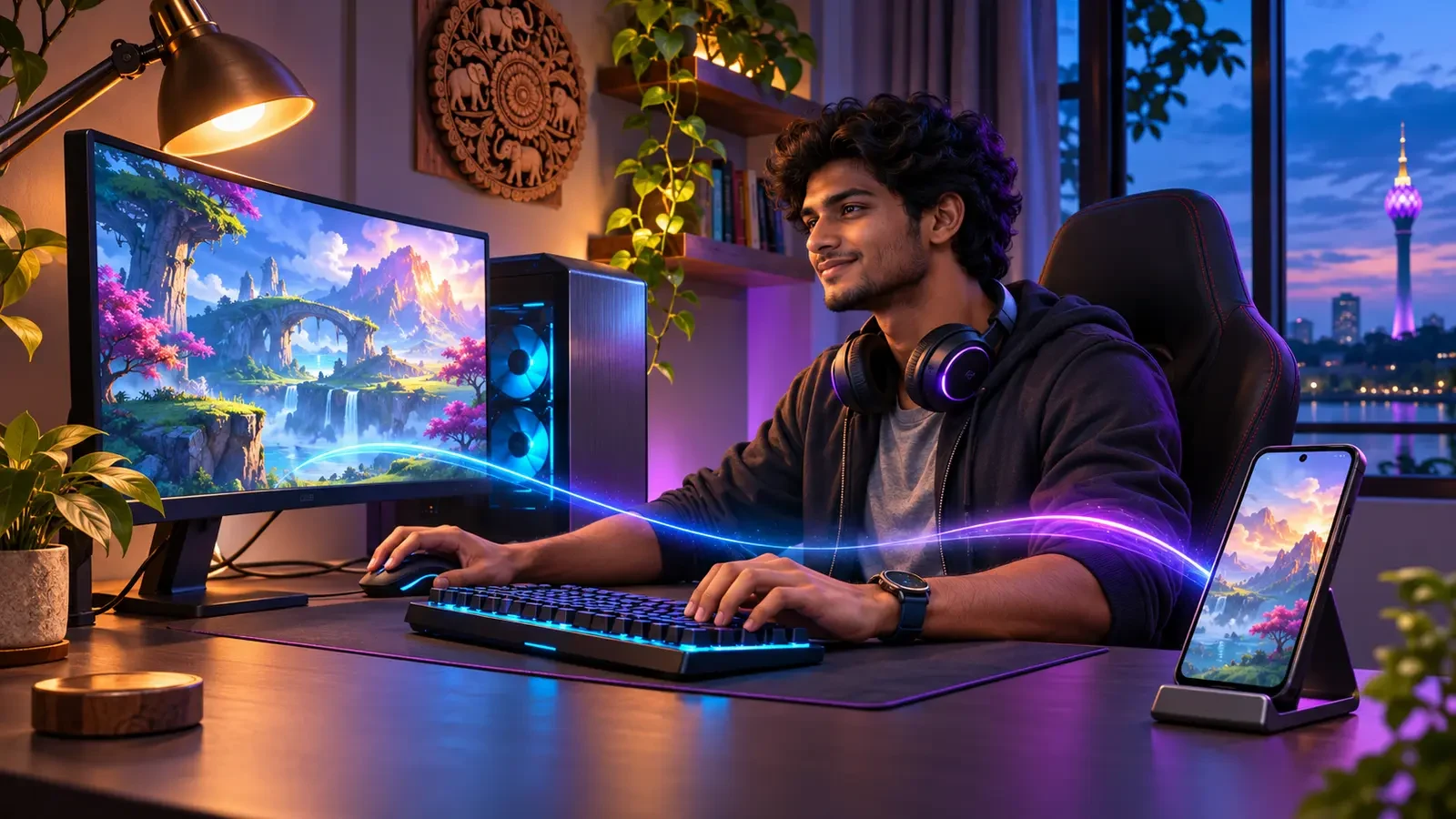
Google Play Games on PC gives eligible Windows users an official way to play a growing catalog of mobile games with a keyboard, mouse and larger display. The idea sounds simple, but a good setup depends on more than downloading an installer. Your PC needs the right storage, memory, processor support and virtualization settings, while each game has its own Windows compatibility and progress-sync status.
This guide explains the current official requirements, the October 2026 feature update, compatibility badges, cross-device progress, installation safety and practical performance preparation. It does not promise that every Android game will be available or that every title will sync. Those details must be checked on the current game page.
What Google Play Games on PC Actually Does
Google describes the service as a way to play supported mobile games on a Windows computer, potentially with improved graphics plus keyboard and mouse input. Players can use a Google Play Games profile, earn Play Points where eligible and move between supported devices when a game's progress is designed to sync.
It is not a mirror of the entire Play Store. The PC catalog is curated, and availability can depend on the game, region and computer. A title visible on an Android phone may be unavailable on PC, while another may appear with a compatibility warning. Check the PC catalog rather than assuming that ownership or installation on mobile guarantees access.
The platform itself does not require a subscription, according to Google's current FAQ. Individual games or in-game items may still cost money. Review the live store page before purchasing anything.
Minimum Requirements in 2026
Google's current help page lists Windows 10 version 2004, a solid-state drive with 10 GB of available space, 8 GB of RAM, an Intel UHD Graphics 630 or comparable GPU, and four physical CPU cores as the minimum foundation. A Windows administrator account and hardware virtualization are also required.
Those are entry requirements, not a guarantee that every game will perform equally. Google recommends a gaming-class GPU such as the GeForce MX450 for better gameplay and lists eight logical CPU cores as the recommended level. A demanding title, high-resolution monitor, background recording or many open browser tabs can raise the practical load.
Check the PC before downloading
- Press Windows + R, enter winver, and confirm the Windows version.
- Open Task Manager and check the CPU, memory and GPU under Performance.
- Confirm that the main drive is an SSD with enough free space for the client and chosen games.
- Save important work before changing virtualization or Windows features, because a restart may be required.
Ten gigabytes is the platform minimum, not a universal total for a full game library. Keep extra storage available for game files, updates and temporary installation data.
Why Virtualization Matters
Google Play Games on PC uses Windows virtualization technology to run supported mobile games. During installation, the app may ask you to enable Windows Hypervisor Platform. Many catalog games also require CPU virtualization to be enabled in the computer's BIOS or UEFI settings.
If virtualization is disabled, do not copy random firmware instructions from a different laptop model. The setting name and key used to enter BIOS or UEFI vary by manufacturer. Use the official manual or support page for the exact computer or motherboard.
Google also warns that some other emulators may not work while Windows Hypervisor Platform is enabled. If you depend on another emulator for work or testing, document its configuration and check compatibility before changing Windows features. Do not repeatedly toggle Hypervisor settings without restarting and testing one change at a time.
Install from the Official Source
Google's official instructions direct Windows users to Google Play Games on PC, where the installer can be downloaded. Open the downloaded file and follow the prompts. If the machine fails a requirement check, the installer should identify the missing item rather than continuing normally.
Avoid installers distributed through file-sharing groups, shortened links or videos promising an “unlocked” catalog. An unofficial package can add malware, steal a Google session or modify game files. The official installer does not need a stranger to control your computer remotely.
Use the correct Windows account
Google notes that only the first Windows user who installs Google Play Games on PC can open and play through that installation. On a shared family computer, decide which Windows user should own the setup before installing. This prevents confusion when another account cannot launch the client later.
Understand the Compatibility Badges
Google now uses five Windows compatibility categories on game detail pages. Reading the badge before installation is more useful than guessing from a game's mobile performance.
- Optimized: the developer optimized the game for Windows.
- Playable: Google tested it for stability, at least 30 fps and mouse or keyboard support.
- Untested: it may work, but Google has not completed the same PC testing.
- Unsupported: known technical issues may cause crashes, sign-in problems or poor performance.
- Not available: the game is not available on PC or for that specific computer.
A badge is guidance, not a permanent benchmark. Google says the label is based on a one-time testing process, so a later game update or a particular hardware configuration may produce different results. If a title is Unsupported, do not spend money assuming the warning will disappear.
Cross-Device Progress: Check Before Switching
Sign in with the same Google Account on mobile and PC when you want to continue across devices. Then look for the Syncs across devices label on the game's Google Play Games page. Google says that label means progress can be saved and continued across supported devices.
Some games also use their own publisher account, server or login method. Before opening a valuable mobile profile on PC, confirm the same in-game account is selected and that the server or region matches. Take a screenshot of the mobile profile name and player identifier for your own records, but never share the account password or verification code.
If a new PC session appears to start from the beginning, stop before making purchases or completing the tutorial. Recheck the Google Account, game login and server. Playing far into a new profile can make the correct recovery path harder to recognise.
What Changed in October 2026
Google's October 2026 release notes add Game Trials for select premium titles. A trial allows eligible players to try a supported premium game for a limited period, then purchase the full game and continue without losing trial progress. The word select matters: do not assume every paid game offers a trial or that every trial has the same duration.
The update also adds PC file and media uploads in compatible games. Google gives examples such as custom profile pictures, images shared in in-game chat, and screenshots or videos attached to player-support requests. Compatibility remains game-dependent.
Treat uploads as a privacy decision. Check the file before selecting it, remove personal documents from the browsing folder, and avoid sharing images that reveal addresses, financial information, school records or private conversations. A new upload feature does not make every file safe to publish.
Controls and Performance Preparation
Google Play Games on PC supports keyboard and mouse controls, but the exact experience varies. Recent 2026 updates added configurable features such as Aim and shoot for supported shooters, Zoom for compatible games and Steer for driving titles. Open the controls menu with the method shown by the client and change only a few bindings at a time.
Build a stable baseline
- Update Windows and the GPU driver through the manufacturer or Windows Update.
- Close unnecessary launchers, video editors and browser tabs before testing.
- Begin with moderate in-game graphics rather than the maximum preset.
- Test movement, menus and account sync before entering ranked or competitive modes.
- Change one graphics or control setting at a time, then retest.
Google's compatibility page may display performance warnings for games that may not run well on a particular PC. Use those warnings as a reason to lower expectations or choose a different title, not as a challenge to bypass safeguards.
Example Setup: Moving One Game from Phone to Laptop
Illustrative example—not a real player testimonial: A player has a Windows 10 laptop with 8 GB of RAM, an SSD and compatible integrated graphics. Before installing, the player checks that hardware virtualization is enabled and saves current work before the required restart.
The player downloads Google Play Games from Google's official page, signs in with the same Google Account used on the phone and chooses a game marked Playable and Syncs across devices. On first launch, the game shows the expected profile and progress. The player tests controls in a low-pressure mode, lowers one graphics setting after noticing frame drops, and keeps the phone installation untouched until the PC session is verified.
The careful part is not the hardware. It is the order: verify requirements, install officially, check sync, test safely, then commit to the new device.
Troubleshooting Without Risky Shortcuts
If installation fails, Google's official guidance recommends addressing the specific missing requirement, enabling Windows Hypervisor Platform if prompted, restarting the computer, or uninstalling and reinstalling the client. The installer also includes a feedback route for unresolved errors.
- If the client will not install, recheck Windows version, SSD space and administrator access.
- If games will not launch, confirm CPU virtualization and Hypervisor settings.
- If performance is poor, check the game badge, GPU driver and background workload.
- If progress is missing, verify the Google Account, game account, server and sync label.
- If another emulator stops working, review the Hypervisor compatibility warning before changing features.
Do not download modified DLL files, registry packs or “FPS boosters” from unknown sites. A clean, official installation is easier to troubleshoot and safer for gaming accounts.
Frequently Asked Questions
Is Google Play Games on PC free?
Google says the platform does not require payment. Some games and in-game items can still cost money.
Can every Android game run on PC?
No. Availability depends on the PC catalog, region, hardware and compatibility status. Check the game detail page.
Do I need Windows 11?
No. Google's listed minimum is Windows 10 version 2004, provided the other hardware and virtualization requirements are met.
Will my phone progress automatically appear?
Only when the correct Google and game accounts are used and the title supports cross-device synchronization. Look for the sync label before relying on it.
Can I use another emulator at the same time?
Possibly, but Google warns that some emulators may not work when Windows Hypervisor Platform is enabled. Check the other emulator's official documentation.
What do Game Trials include?
The October 2026 update adds limited-time trials for select premium games. Eligibility and duration depend on the current title listing.
Top Up Your Favourite Games
If you're looking for a trusted place to top up your favourite games including Free Fire, PUBG Mobile, Mobile Legends, Blood Strike, and Call of Duty, visit HTGTopUp.com for fast digital game top-up services. Website: https://htgtopup.com.