
Your HTGTopUp account may be used from the website, the Android app, a desktop browser or more than one personal device. The Login Devices page helps you review those sessions from one place and remove access you no longer recognise or need.
The page records the five most recent login sessions and displays useful details such as the browser or app, device type, country, IP address, login method and session status. It also marks the device you are using now as the Current device, while another session that remains signed in can appear as Active.
Why You Should Review Login Devices
Checking login sessions is a simple account-security habit. It can help you notice an old browser that was never signed out, a shared phone that still has access, or a device and location you do not recognise. It is especially useful after using a public computer, changing phones, lending a device to someone, or receiving an unexpected login alert.
A session list is a security clue, not a perfect location tracker. Mobile networks, internet providers and VPNs can make an IP address or country appear different from your exact physical location. Compare several details together: device type, browser, app or web login, login method, time, country and whether you remember using that device.
Step 1: Sign In Through the Website or App
Open HTGTopUp.com in your browser or launch the HTGTopUp app. Sign in using your own account credentials. Never share your password, verification code or recovery information with another person.
After signing in, open the Profile page. In the mobile app, the Profile icon appears in the bottom navigation. On the website, use the available account or profile navigation for your screen size.
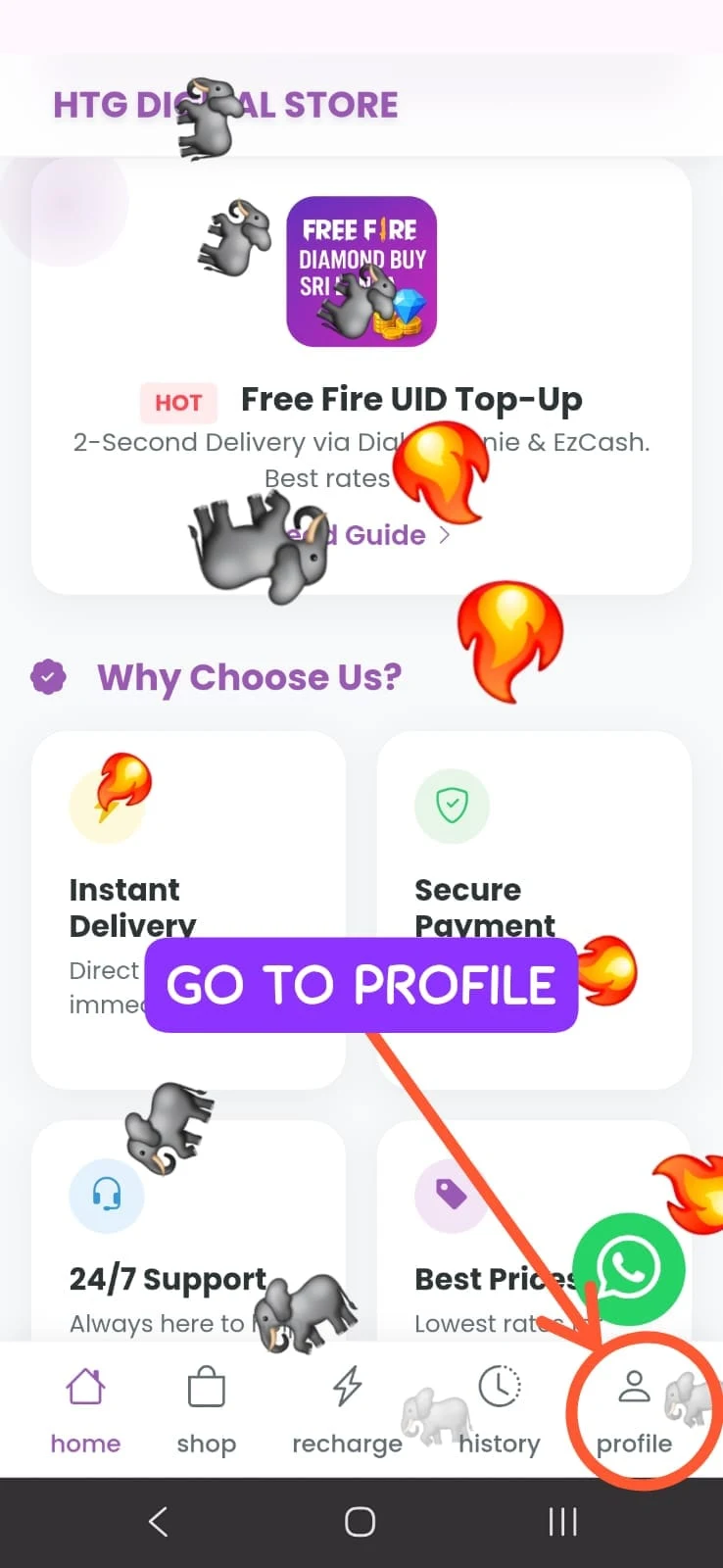
The screenshot above highlights the Profile button in the app. The exact layout may change slightly after future updates, but the account-security controls remain associated with the profile area.
Step 2: Select Login Devices
Inside Profile, find and select Login Devices. This option opens the session-management page rather than logging you out immediately. Other profile tools, such as Edit Profile, FAQ, Developer API and Game Accounts, are separate features.
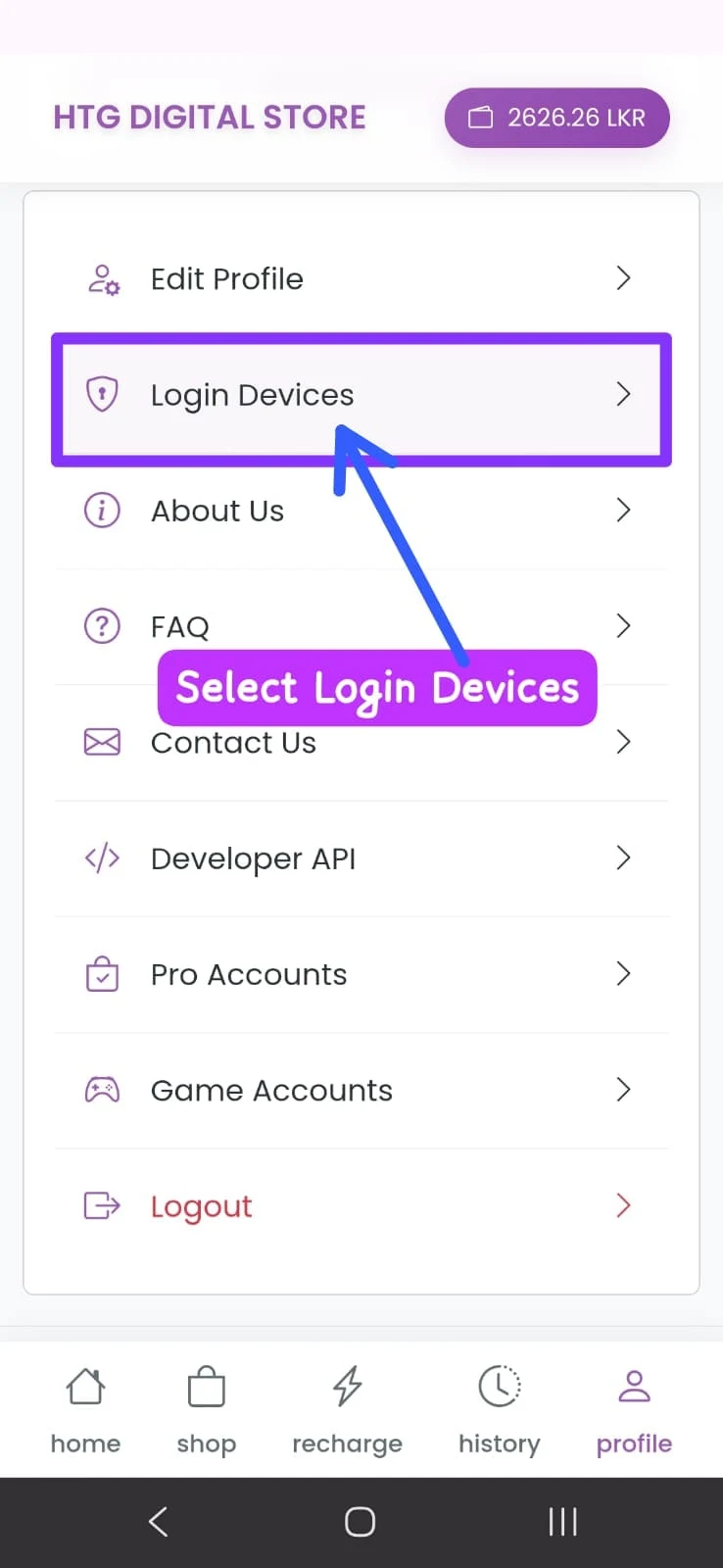
Only use the Login Devices controls while signed in to your own account. If you are helping somebody else, ask that person to review and remove their sessions themselves instead of requesting their password.
Step 3: Review the Recent Login List
The Login Devices page shows the five most recent sessions so you can review where your account was used. A session card may include the following information:
| Detail | What it tells you | How to use it |
|---|---|---|
| Browser and operating system | For example, Chrome on Windows or Chrome on Android | Compare it with the device you remember using |
| Login source | Browser login or app login | Check whether you used the website or app |
| Device type | Desktop or mobile | Look for a device category that seems unfamiliar |
| IP address | The network address recorded for that session | Use it as a clue; it may change across networks |
| Country | The approximate country associated with the connection | Investigate unexpected countries or regions |
| Login method | How the session signed in, such as password | Compare it with the method you normally use |
| Status | Current device or another active session | Decide whether the session should remain signed in |
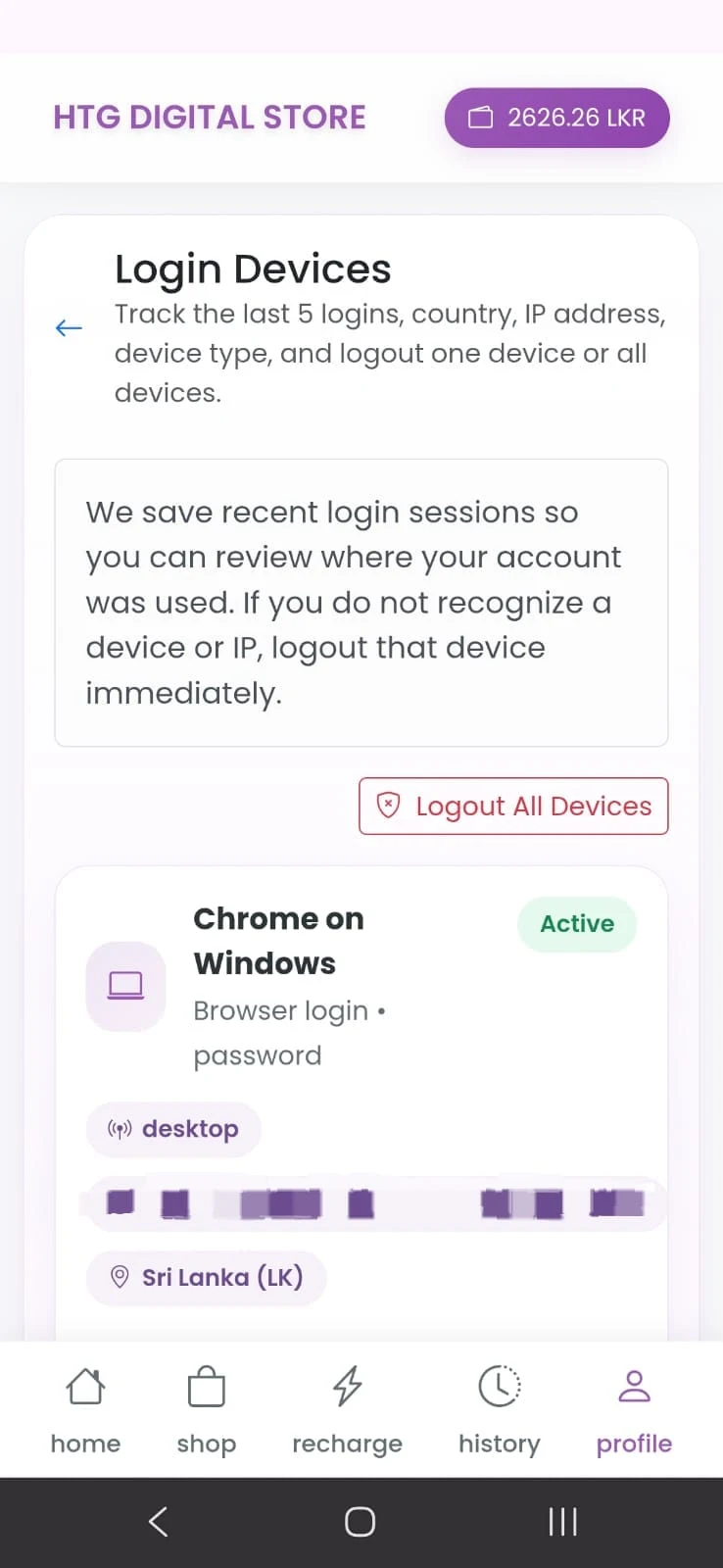
Tap a session card or the available details control to review more information. Do not publish, forward or post screenshots containing a complete IP address, account balance or other private account data.
What “Current Device” and “Active” Mean
Current device identifies the browser or app session you are using to view the page right now. This label helps prevent confusion when the same phone or browser appears beside older sessions.
Active means another session is still authorised or signed in. It may be your own desktop browser, an older phone, a tablet or another device you previously used. An Active label does not automatically mean someone has accessed the account without permission. First compare the device and login details with your own activity.
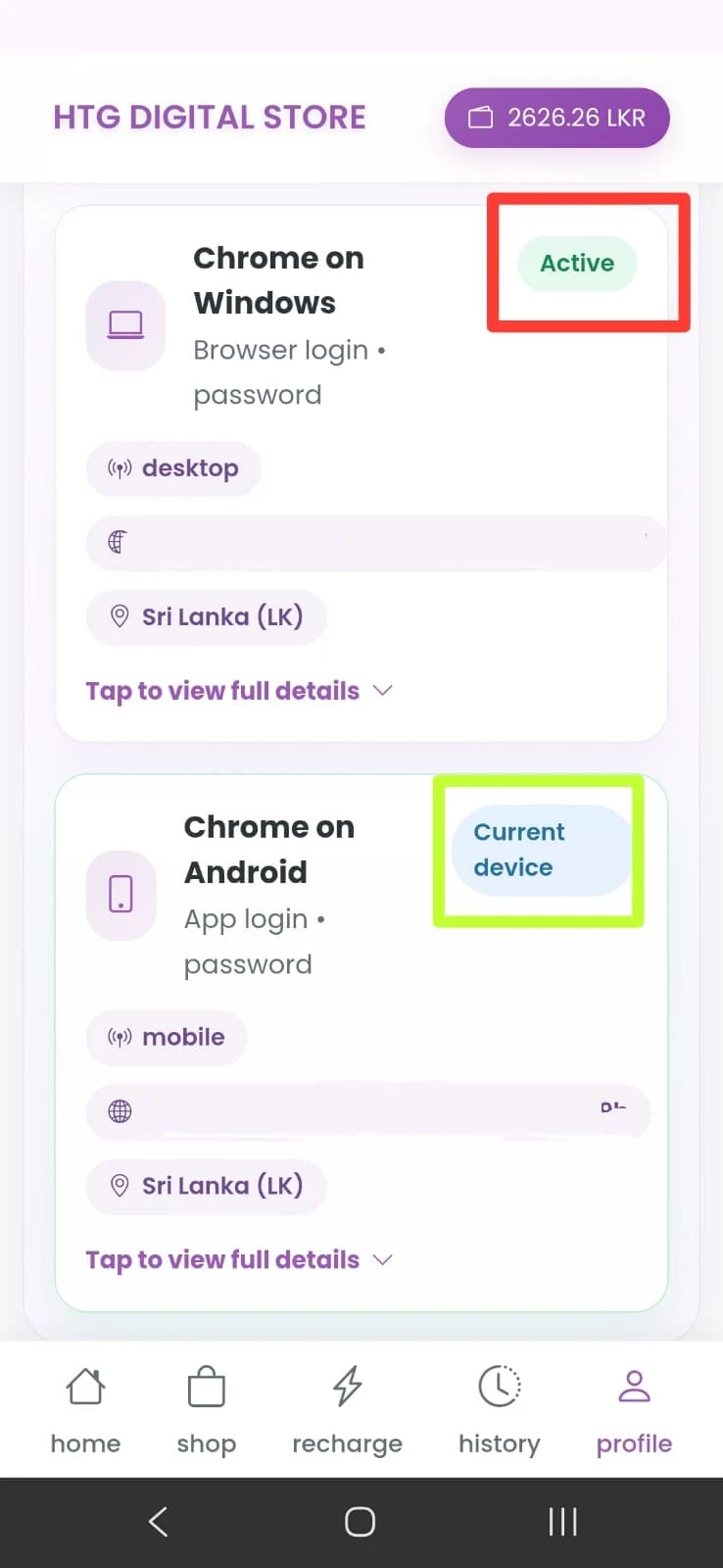
Examples
- If you are using the Android app, the matching Android app session should appear as Current device.
- If you previously signed in through Chrome on a Windows computer and did not log out, that card may appear as Active.
- If an Active device belongs to you and remains secure, you may keep it signed in.
- If you do not recognise it or no longer use it, remove that session.
How to Log Out One Device
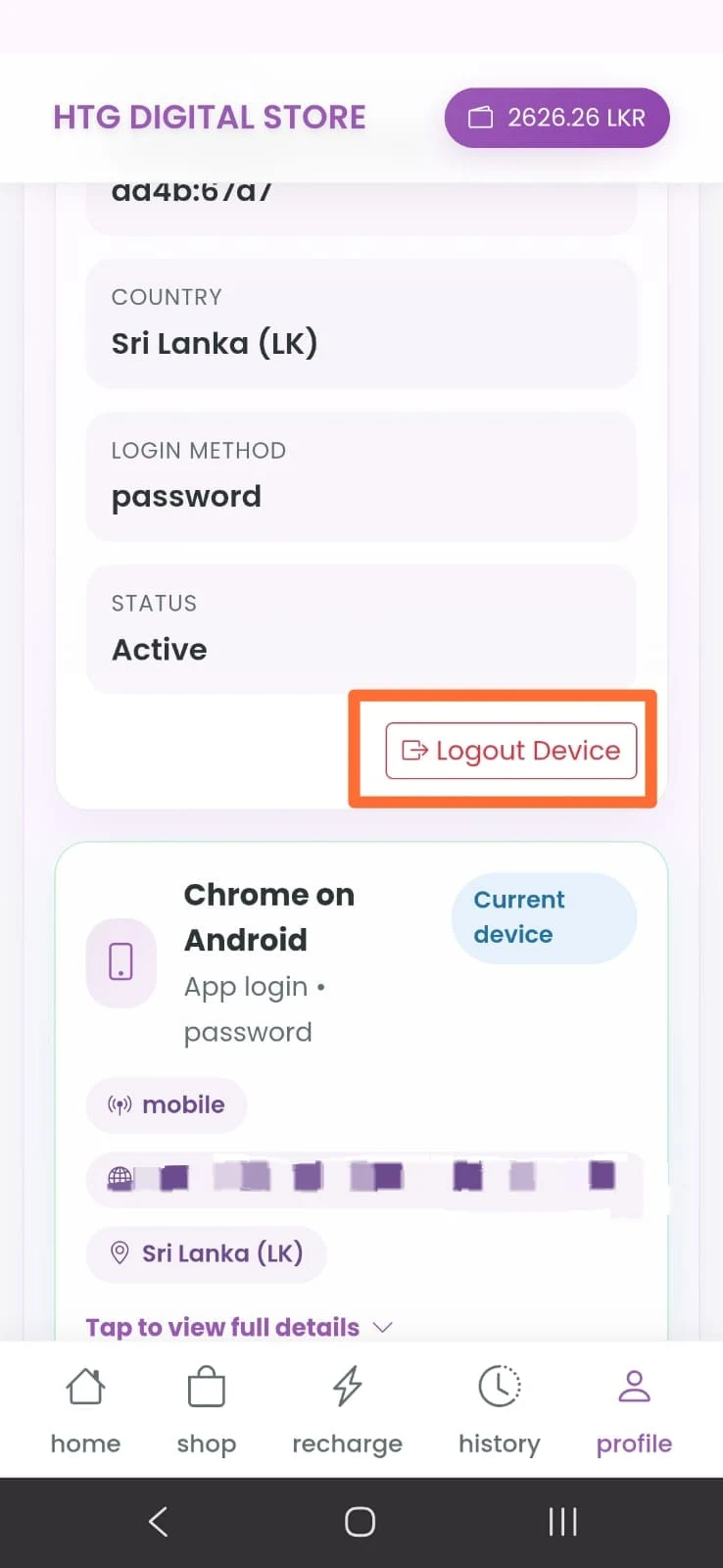
Use individual logout when you want to remove one specific session while leaving your other devices connected. Open the relevant card, confirm its details, and select Logout Device.
- Check the browser, operating system and device type.
- Review the country, IP clue, login method and status.
- Confirm that you selected the intended session.
- Tap or click Logout Device.
- Refresh the page and confirm that the session is no longer active.
If the removed device is still in use, the account should require authentication again when that session attempts to access protected features. If the session reappears without your action, change your password and contact HTGTopUp support.
How to Log Out All Devices
Select Logout All Devices when you want to end every listed session instead of removing them one by one. This is useful after losing a phone, using a shared computer, seeing several unknown logins or deciding to reset account access completely.
Before confirming, make sure you know your password and can access any email or verification method required for the next login. Be prepared to sign in again on the devices you still trust. Read the confirmation message carefully because session behaviour can depend on the current app version.
After logging out all devices
- Sign in again only on devices you own or trust.
- Change the account password if any session was unfamiliar.
- Use a unique password that is not shared with another website.
- Do not approve unexpected verification requests.
- Review Login Devices again after signing back in.
What to Do If You See an Unknown Login
Act promptly, but first make sure the entry is not your own connection shown differently. A mobile-data IP can change, a VPN can display another country, and a browser update may alter the device description.
- Compare the session: Check the device, browser, app or web source, country and login method.
- Remove it: Use Logout Device, or Logout All Devices if several sessions are suspicious.
- Change your password: Choose a new, unique password that the unknown session could not know.
- Secure your email: Your registered email may be used for account recovery, so review its security as well.
- Check account activity: Review wallet and order history for actions you did not make.
- Contact support: Provide the relevant time and session details without sharing your password or OTP.
Do not confront an unknown person or attempt to trace the IP yourself. IP information is limited and can be misleading. Use the built-in logout controls and official support process.
Protect Your HTGTopUp Account
- Use a long password that is unique to HTGTopUp.
- Do not save your password on a shared browser or public computer.
- Log out after using any device that is not personally controlled by you.
- Never send a password, OTP or recovery code through WhatsApp or social media.
- Keep the HTGTopUp app and your phone operating system updated.
- Review Login Devices periodically, especially after travelling or changing phones.
- Contact official support if you notice an order, wallet action or session you did not create.
Logging out an unknown device protects the current session, while changing the password protects future access. When a login is genuinely suspicious, doing both is safer than relying on only one action.
Frequently Asked Questions
Why do I see my own account more than once?
You may have separate sessions for the app, a mobile browser and a desktop browser. Compare each card before removing it.
Does a different IP always mean someone else logged in?
No. IP addresses can change when you switch between Wi-Fi and mobile data, restart a router, travel or use a VPN. Review the complete session details.
What is the difference between logging out one device and all devices?
Logout Device targets the selected session. Logout All Devices is intended to remove all sessions together. Follow the on-screen confirmation and be ready to authenticate again.
How many recent sessions are displayed?
The current Login Devices screen states that it tracks the last five logins.
Should I share an unknown IP address publicly?
No. Send relevant session information only through official support when necessary, and never include your password, OTP or recovery code.
Final Takeaway
The Login Devices page gives HTGTopUp users direct control over recent account sessions. Open Profile, select Login Devices, compare the listed browser, device, country, IP clue, login method and status, then remove any session you no longer trust.
Use Logout Device for one session and Logout All Devices for a complete session reset. If an entry is genuinely unfamiliar, change your password immediately, review account activity and contact official support.
Top Up Your Favourite Games
If you're looking for a trusted place to top up your favourite games including Free Fire, PUBG Mobile, Mobile Legends, Blood Strike, and Call of Duty, visit HTGTopUp.com for fast digital game top-up services. Website: https://htgtopup.com.