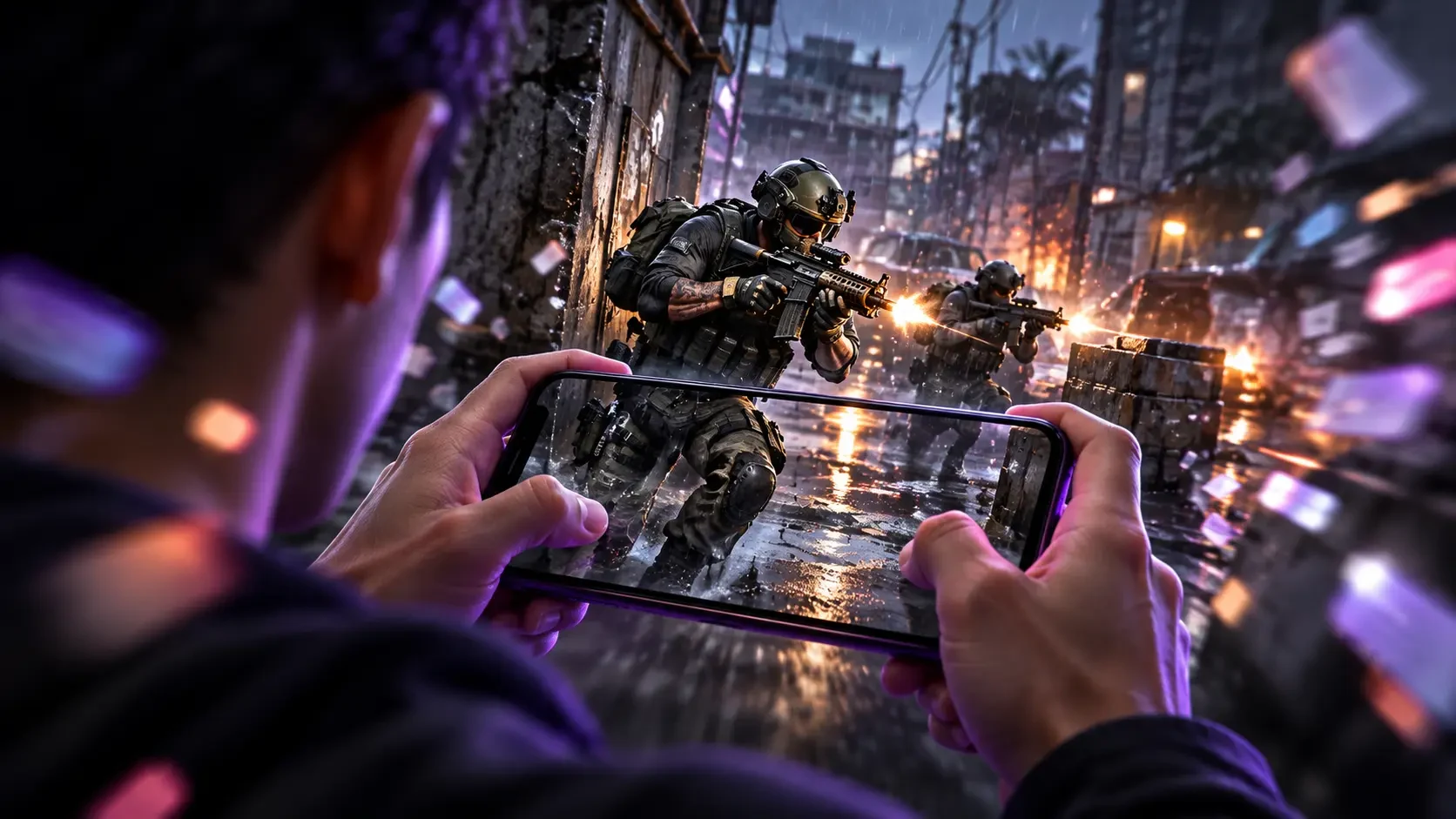
A ranked match can turn on one sound, one blocked corner of the screen, or one accidental tap. A message banner can cover the minimap, an incoming call can interrupt team audio, and a low-priority alert can pull your attention away from a final objective. The practical answer is not to switch off every notification forever. It is to build a repeatable gaming focus setup that protects the match while still allowing genuinely urgent contacts.
This guide explains how to prepare iPhone and Android devices before competitive mobile play, how to choose which people and apps can interrupt you, and how to restore normal communication after the session. Menu names can vary by operating-system version and Android manufacturer, so treat the steps as a clear framework and confirm the labels shown on your own device.
Why Notifications Hurt More Than They Seem
The obvious problem is visual obstruction. A banner can hide the kill feed, ability status, compass, squad list, or a touch control placed near the top of the display. The less obvious problem is attention switching. Even when you dismiss a banner immediately, your brain has already read part of it and briefly left the match.
Interruption also creates input mistakes. A player may tap a banner instead of a fire or movement control, open another app, or drag the notification shade while trying to aim. Voice calls can change audio routing, mute a microphone, or cover the interface. None of these outcomes means the phone is faulty; they are normal system behaviours that should be configured before a serious session.
A good focus setup therefore has three goals:
- Keep ordinary alerts, banners, sounds, and vibrations out of the match.
- Preserve a narrow route for urgent people or repeated calls when appropriate.
- Return the device to normal automatically or through a simple post-match check.
Build a Pre-Match Focus Routine
Start ten minutes before the first ranked game. Finish downloads, connect your headset, check battery and network quality, then activate the focus mode. Do not wait until matchmaking has started; changing system settings under time pressure invites mistakes.
1. Decide who may interrupt
Create a very short allow-list. It might include a parent, guardian, partner, or another essential contact. Avoid allowing entire contact groups unless every person in that group truly needs immediate access. Both Apple and Android offer ways to manage interruptions, but exact controls differ by device and software version.
2. Decide which apps may interrupt
Emergency, transport, security, or authentication apps may deserve access. Shopping, social, video, promotional, and most game-store alerts usually do not need to appear during a match. Team communication is a special case: allow the app only if your squad genuinely uses it during play and test how its banners behave.
3. Choose an end condition
A focus mode that stays active all day can make you miss important information. Use a schedule, location, app-based trigger, or a timer when your phone supports it. If you activate the mode manually, add “turn off focus” to the same routine as closing the game and checking messages.
Set Up Gaming Focus on iPhone
Apple’s current iPhone guide says Focus settings can control which people and apps may send notifications. It also supports a custom Focus, while available options may include Gaming depending on the device and software version. Begin in Settings > Focus, choose an existing option, or add a custom one.
For a ranked-play setup, use these steps:
- Name the Focus clearly, such as Gaming or Ranked.
- Choose the people whose notifications may be allowed or silenced.
- Choose the apps that may be allowed or silenced.
- Review whether repeated calls or time-sensitive notifications should break through.
- Add a schedule or automation only after testing the mode manually.
Apple also provides controls for notification presentation. Review banners, sounds, badges, previews, and lock-screen behaviour in the notification settings for noisy apps. Focus is the match-time layer; app-level settings are the long-term clean-up that reduces unnecessary alerts throughout the day.
Before relying on an automatic Gaming Focus, run a test. Ask a non-urgent contact to message you, have an allowed contact call, and open the game. Confirm that the expected alert is silenced and the urgent route still behaves as intended. Apple’s official instructions are available in its Focus setup guide and notification guide.
Configure Do Not Disturb on Android
Android settings differ more noticeably between brands. Search Settings for Do Not Disturb, Modes, Focus, or Notifications. Google’s Android help explains that individual app notifications can be set to alerting or silent, and that pop-on-screen behaviour can be controlled on supported devices.
A reliable Android approach combines two layers:
- Do Not Disturb or a device mode: use it for the temporary gaming session and configure allowed people, apps, alarms, or repeated callers.
- Per-app notification controls: silence promotional categories, disable pop-up banners where available, and keep only useful security or transaction alerts.
Some phones add a game dashboard, game booster, or gaming mode. These features may suppress alerts, lock brightness, or provide performance tools, but their behaviour is controlled by the manufacturer. Do not assume a booster automatically blocks every call or banner. Open its settings, verify the interruption options, and test them before ranked play.
If menu labels do not match a tutorial, use the Settings search bar rather than installing an unknown “game booster” app. System controls are generally the safer starting point. Google’s official Android notification guide also notes that settings can vary by phone.
Do Not Block the Alerts You Actually Need
Silence should be selective. Keep alarms available when they matter. If a family member may need you urgently, allow that person or use the repeated-call option after agreeing on what it means. Players who use two-factor authentication should make sure they can still retrieve a sign-in code before the session, then avoid changing accounts during a match.
Payment alerts deserve special care. Complete game purchases and top-ups before entering the lobby. Confirm the order, save the receipt, and make sure the correct Player ID, UID, server, region, or account email was used. Once the purchase is complete, you can let the ranked focus silence routine promotional alerts without hiding an unresolved transaction from yourself.
Never share a game-account password to complete a top-up. At HTGTopUp.com, readers can review clearly displayed, competitive rates and the ordering details required for supported products. Available checkout methods may include Visa, Mastercard, EzCash, and supported QR payments. Always verify the options displayed at checkout, because payment availability can change by product or order.
A Five-Minute Ranked Match Checklist
- Close unfinished tasks: finish downloads, purchases, messages, and calls.
- Check the connection: use the more stable option between Wi-Fi and mobile data; do not switch casually in the middle of a match.
- Set the device: activate Gaming Focus, Do Not Disturb, or the tested equivalent.
- Check audio: confirm microphone, headset, game volume, and voice chat.
- Check power and temperature: begin with enough charge and remove anything that traps excessive heat.
- Open the game only after setup: avoid swiping into system menus once matchmaking begins.
This routine is intentionally short. A complicated ritual will be skipped; a five-minute routine can become automatic. Squad leaders can also announce “focus on” before queueing so teammates finish urgent messages together.
What to Do When an Interruption Still Gets Through
Do not fight the phone and the opponent at the same time. If a banner appears, avoid tapping near it unless it blocks an essential control. Move to safe cover if the game allows it, communicate briefly with the squad, and wait for the banner to disappear. If a call takes over the screen, return to the game carefully and recheck voice chat before making a push.
After the match, identify the source. Was the app on the allowed list? Was a time-sensitive category permitted? Did the manufacturer’s game mode override the system mode? Adjust one setting, then test again in a training area or unranked match. Changing several controls at once makes it difficult to know which one solved the problem.
If alerts are silent but still cover the display, change that app’s banner or pop-on-screen setting. If vibration is the distraction, check haptics and notification vibration separately. If the problem is a squad-chat overlay, use the chat app’s own notification categories rather than blocking the entire service.
Post-Match Recovery Matters
A focus routine is complete only when normal communication returns. Turn off the mode or verify that its timer ended. Check missed calls and messages, then review transaction notifications if you made a purchase before playing. On shared or family devices, restore the owner’s preferred settings instead of leaving a strict gaming mode active.
Once a week, audit the allow-list. Remove apps that have become noisy, add a necessary contact, and test the emergency route again. Operating-system updates can move menus or change how modes behave, so a quick check is worthwhile after a major update.
Frequently Asked Questions
Will Do Not Disturb improve ping or frame rate?
It is mainly an interruption-control tool, not a network accelerator. Silencing alerts can protect attention and prevent accidental taps, but it does not guarantee lower latency or higher FPS.
Should I use airplane mode for ranked gaming?
Usually no. Airplane mode disables wireless connections until you manually re-enable selected ones, and it can interfere with calls or mobile data. A properly configured Focus or Do Not Disturb mode is more suitable for most online matches.
Can emergency contacts still reach me?
They can if you configure the allowed people, repeated-call, or emergency-bypass options supported by your device. Test the exact setup with the person before depending on it.
Why do some alerts still appear in gaming mode?
The app may be allowed, the notification may be treated as time-sensitive, or the manufacturer’s game mode may control only some alert types. Review both the system mode and that app’s notification categories.
When should I complete an HTG top-up?
Complete it before queueing. Verify the required UID, Player ID, server, region, or email, use an available supported payment method, and keep the receipt. Then start the focus mode after the order details are safely recorded.
Make Focus Part of Your Competitive Skill
A notification-free match is not created by luck. It comes from a tested allow-list, sensible app controls, a clear emergency route, and a short pre-match routine. Set it up once, test it outside ranked play, and refine it after any interruption. The result is a calmer screen, fewer accidental inputs, and more attention for the decisions that actually win matches.
Top Up Your Favourite Games
If you're looking for a trusted place to top up your favourite games including Free Fire, PUBG Mobile, Mobile Legends, Blood Strike, and Call of Duty, visit HTGTopUp.com for fast digital game top-up services. Website: https://htgtopup.com.