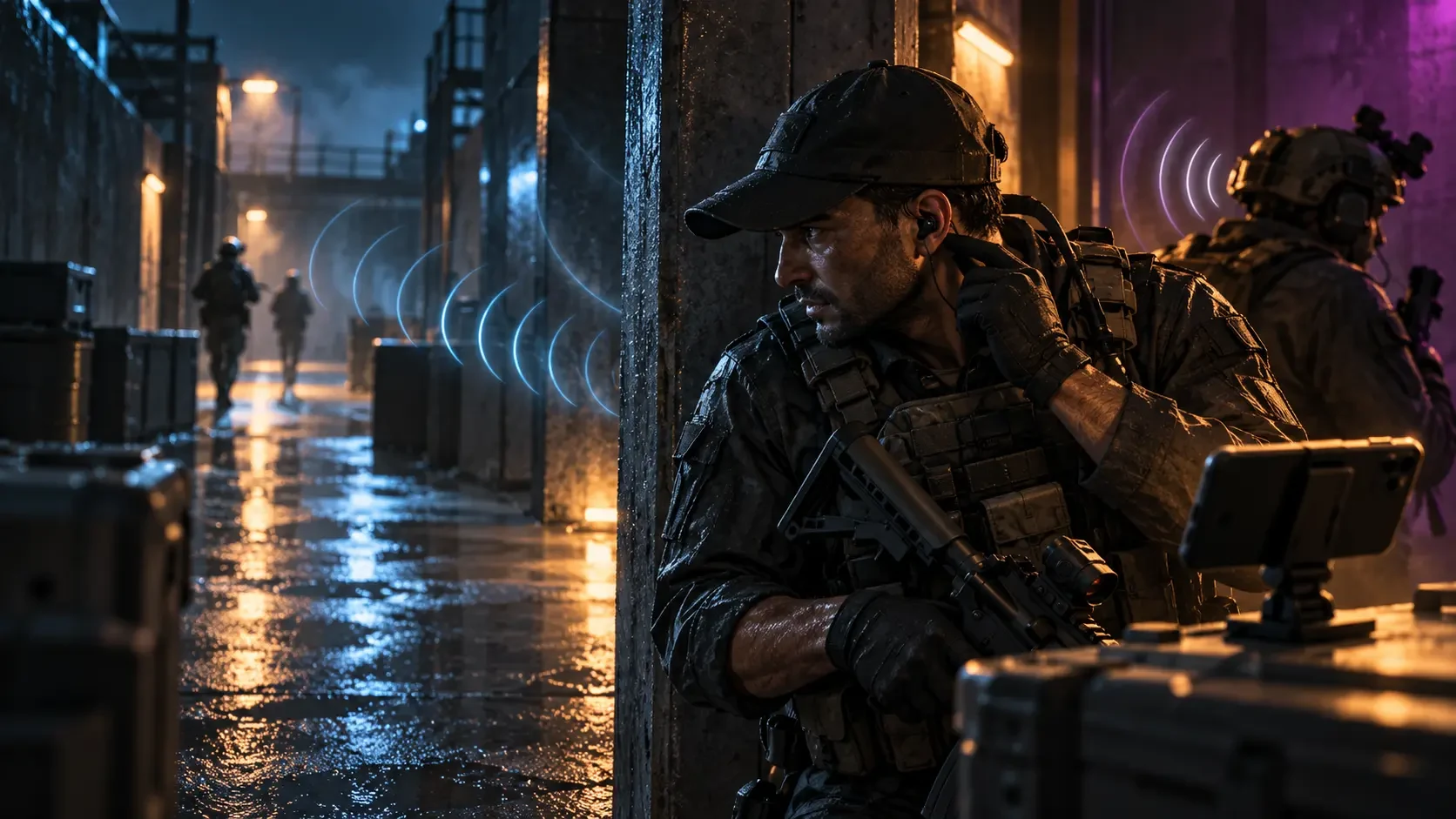
In a competitive mobile shooter, the first useful warning is often heard rather than seen. A boot on metal, a reload behind cover or a teammate calling “left stairs” can reveal more than a crowded minimap. Yet higher volume can make explosions harsher without making important details clearer.
This mobile shooter audio guide takes a better approach: remove distractions, build a balanced mix, learn what each cue means and protect your hearing while you play. The principles apply across battle royale, extraction and team-based shooters, including Call of Duty: Mobile, PUBG Mobile, Free Fire and Blood Strike. Menus differ by title and update, so treat the steps as a repeatable method rather than a promise about one fixed preset.
Why Louder Is Not the Same as Clearer
A match contains several layers at once: weapons, vehicles, announcers, music, ambience, squad voices and movement. Raising every layer together does not isolate footsteps. It can shrink the comfortable gap between a quiet detail and a loud blast, tire your attention and tempt you to keep increasing volume as the session continues.
Clarity comes from contrast. If music and nonessential effects are quieter, useful movement sounds have more room. If voice chat is clean, a short callout reaches you without covering the next cue. If the room is quieter, your ears do not need to compete with a television, fan or traffic outside.
Start With the Listening Environment
Before changing the game, fix the conditions around it. Sit somewhere that lets you hear at a moderate device level. Close a door if that is practical, move away from a loud television and reduce fan noise near the phone microphone. A quieter environment can improve perception more than another volume increase.
Use equipment that fits the session
- Phone speakers: convenient for casual play, but left-right separation may be limited and your microphone can pick up the game.
- Wired earphones: usually simple and predictable; secure the cable so it does not pull during a match.
- Wireless earphones or headsets: comfortable and tidy, but charge them and test latency before ranked play.
- Noise-cancelling models: useful in noisy rooms because they can reduce the urge to overpower background sound. Stay aware of people, traffic and alarms around you.
Use a well-fitting pair that does not require uncomfortable pressure. Confirm that both channels work by playing a familiar left-right test or using a training area. Clean ear tips according to the manufacturer’s instructions, and never share in-ear equipment without proper cleaning.
Build a Reliable Audio Baseline
Do not copy a creator’s numbers blindly. Their phone, headset, hearing, room and game version may differ from yours. Instead, create a baseline you can reproduce after an update or device change.
- Set the phone to a comfortable level before launching a match. Avoid starting near maximum.
- Enter a training mode or a low-pressure match rather than experimenting in ranked play.
- Keep core effects audible. Reduce music and cinematic layers if they mask movement.
- Set voice chat just high enough that calm callouts remain understandable during combat.
- Trigger several loud sounds. If they feel sharp or uncomfortable, lower the overall output.
- Save a screenshot of the final settings so an update does not erase your reference.
Official Call of Duty guidance places voice controls in the game’s audio settings and allows players to adjust communication features. Exact labels can change, so read the current menu rather than relying on an old screenshot. Keep the master level as your safety ceiling, then balance music, effects and voice beneath it.
Learn the Cues That Actually Change Decisions
Good audio awareness is not about identifying every sound. It is about connecting a cue to a useful next action. Official Call of Duty training material highlights information such as footsteps, weapons, breaking glass and teammate communication. Across mobile shooters, these cues often answer four questions: where, how far, how many and what are they doing?
Footsteps and surface changes
Listen for direction first, then material. Metal, wood, concrete and shallow water can suggest a route even when you cannot see the opponent. A sudden stop matters too: the other player may be holding an angle, healing or waiting for you to reveal yourself.
Reloads, doors and interaction sounds
A reload may create a short timing window, while a door or broken window can reveal the path into a building. Do not charge automatically. Combine the sound with cover, teammate positions and the possibility of a second opponent.
Weapons, vehicles and abilities
These louder sounds help estimate distance and urgency. They can also mask quieter movement. Use that moment deliberately: rotate with your squad, change cover or pause to listen again when the loud layer ends.
Audio is evidence, not proof. Some games alter cue distance, occlusion or mixing through updates. Network delay and device processing can also affect what you perceive. Confirm important information with sightlines, the minimap and squad communication.
Make Direction Easier to Read
Stereo works best when the left and right channels are correct and your earphones are worn on the intended sides. Disable unusual phone sound effects while testing; aggressive virtual surround, bass boosts or equalizer presets can make the mix exciting but blur the direction of short cues.
- Stand still for one second when safe and rotate the camera slowly. A cue should move smoothly from one side to the other.
- Compare open space with an indoor room to learn how the game treats walls and vertical floors.
- Ask a teammate to walk, sprint, crouch and change surfaces in a private or training area.
- Repeat with your normal weapon firing nearby so you understand what remains audible during pressure.
Do not chase heavy bass as a shortcut. Low frequencies can add impact, but the detail that helps locate movement may sit elsewhere in the mix. A neutral or manufacturer-default profile is a sensible starting point.
Keep Team Voice Chat Useful
Clear communication reduces the need to stare at the screen for every update, but an open microphone full of room noise can cover enemy movement. Test your microphone before the match and use push-to-talk, microphone sensitivity or open-mic thresholds when the game supports them.
A short-callout structure
Use location, action, number: “warehouse roof, pushing, two” is more useful than a long reaction. Add your plan only when needed: “holding stairs” or “rotating right.” After the callout, leave space for teammates and environmental audio.
- Avoid shouting; it can distort the microphone and encourage everyone to raise voice volume.
- Mute disruptive or abusive players instead of letting the channel destroy focus.
- Do not share personal information, passwords or account codes in voice chat.
- Use pings as a second channel when speech is difficult or the connection is unstable.
For a deeper teamwork routine, see HTG’s squad communication and callouts guide.
Use Safer Listening Habits
The World Health Organization’s safe-listening guidance recommends keeping personal-device volume at no more than about 60% of maximum and, where a device can measure exposure, aiming below an average of 80 dB. The WHO and ITU also promote features such as sound-exposure tracking, clear volume controls and safety messages for gaming and esports.
Percentage is only a starting point because devices and headphones differ. If the room becomes noisy, reduce that noise instead of automatically turning the game up. Use built-in headphone safety or exposure monitoring when available, and take quiet breaks during long sessions.
Ringing, muffled hearing, pain or unusual sensitivity after playing are signs to stop and rest your ears. If symptoms persist or concern you, seek advice from a qualified healthcare professional. A match is never worth pushing through discomfort.
A 15-Minute Audio Training Drill
Audio skill improves faster when the practice has a goal. Run this short drill after a major update, when changing earphones or before an important team session.
- Three minutes—comfort check: listen to quiet movement and a loud firefight. Lower the master level if loud moments feel harsh.
- Four minutes—direction: have a teammate circle you at different distances. Call left, right, front or rear before turning.
- Three minutes—surface: compare walking and sprinting across two or three materials.
- Three minutes—communication: combine one moving opponent with short squad callouts. Adjust voice volume until both remain understandable.
- Two minutes—recall: leave the menu, re-enter it and record the final settings.
Measure improvement by correct decisions, not by louder output. If you identify direction more consistently at a comfortable level, the setup is working.
Illustrative Example: The Quiet Corridor
This is a fictional example, not a real player testimonial. A four-player squad enters the final phase of a battle royale match. One player normally keeps music, effects and team voices equally high. During a vehicle explosion, every layer competes and the squad misses footsteps on a staircase.
Before the next session, they lower music, set voices to a clear but moderate level and practise the “location, action, number” format. They also move away from a loud television instead of raising device volume. In the next corridor fight, one teammate hears a surface change, calls “metal stairs, climbing, one,” and then stays quiet. The squad does not win because of a magic preset; it makes a better decision because the mix, environment and communication all preserve the useful cue.
Troubleshooting Common Audio Problems
Footsteps disappear during gunfire
Reduce nonessential music and confirm that effects are not being compressed by a phone enhancement. Accept that loud events may intentionally mask quiet sounds; use positioning and teammate coverage rather than unsafe volume.
Left and right feel reversed
Check that the earphones are worn correctly, disable unusual spatial processing and test another known stereo source. If one channel is faulty, replace or repair the equipment rather than compensating in play.
Voice chat overwhelms the match
Lower voice-chat volume slightly, ask teammates to move microphones away from fans and use microphone thresholds where available. Mute a channel temporarily when essential game audio matters more.
Wireless audio feels delayed
Try the device’s low-latency or game mode if supported, close unnecessary Bluetooth connections and compare with wired audio. Do not assume every wireless model performs the same way.
Pre-Match Audio Checklist
- Both audio channels work and the earphones fit comfortably.
- Master volume is moderate; loud effects do not feel sharp.
- Music does not cover footsteps or teammate speech.
- The microphone is clear and not picking up the phone speaker.
- The squad agrees on short callouts and ping habits.
- Headphone safety or exposure monitoring is enabled when available.
- A break is planned for a long session.
Pair this checklist with HTG’s mobile gaming focus and interruption guide to reduce notifications and other avoidable distractions.
Frequently Asked Questions
Should I use maximum volume to hear distant footsteps?
No. Maximum volume increases exposure and can make loud effects uncomfortable without reliably isolating footsteps. Improve the environment and mix first, and keep the device at a comfortable level.
Is a gaming headset required?
No. A reliable stereo pair with a comfortable fit can be enough. Directional consistency, low distraction and a balanced mix matter more than a gaming label.
Should I copy a professional player’s equalizer?
Use it only as a test, not a guarantee. Their hardware, hearing, room and game build differ. Compare it with a neutral profile at the same safe volume.
Why did my audio change after an update?
A game update may reset settings or alter mixing. Phone operating-system updates and accessory firmware can also affect output. Re-run the short training drill and compare your saved screenshot.
Where can I top up after checking my setup?
Visit HTGTopUp.com and follow the current product instructions for your game. Confirm the Player ID, UID, server or region requested on the page, keep your receipt and never share your game-account password.
Top Up Your Favourite Games
If you're looking for a trusted place to top up your favourite games including Free Fire, PUBG Mobile, Mobile Legends, Blood Strike, and Call of Duty, visit HTGTopUp.com for fast digital game top-up services. Website: https://htgtopup.com.